
How to Fix Sorry Google Docs is Unable to Open the Document
- Fix Sorry Google Docs is Unable to Open the Document on Mobile
- Fix Sorry Google Docs is Unable to Open the Document Online
- Other Common Fixes to Google Docs is Unable to Open the Document
“Sorry, Google Docs is unable to open the document” appears when Google Docs couldn't load the file you tried to open or import. The problem can stem from several causes. You can work through the fixes below until one resolves it.
-
Fix Sorry Google Docs is Unable to Open the Document on Mobile
-
Fix Sorry Google Docs is Unable to Open the Document Online
-
Other Common Fixes to Google Docs is Unable to Open the Document
Fix Sorry Google Docs is Unable to Open the Document on Mobile
- Check the File in a Mobile Browser
When you see the “Sorry, Google Docs is unable to open the document” error in the mobile app, first open the file in a web browser to determine whether the problem is with the app or the file itself.
- Clear Google Docs App Caches or Data
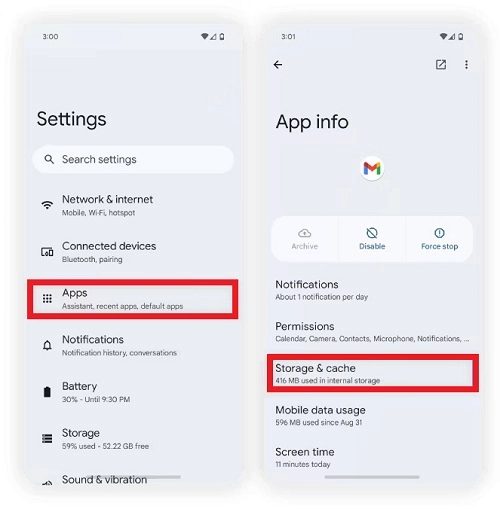
If the file opens fine in the browser, the app is likely the cause, so try clearing its cache. Here is how to do it on Android: Open your phone's Settings, tap Apps (or Apps & notifications > See all apps), and select Docs. Then tap Storage & cache and choose Clear cache. Some Google Docs not opening issues are connected to corrupted data or offline conflicts. Data removal can help get back on track. Here are the steps: Go to Settings > Apps > Google Docs > Storage. Then tap Clear data
- Reinstall the Google Docs App
If nothing else works, a fresh install may help. Delete the Google Docs app from your phone, then download it again from the App Store or Google Play Store and sign in with your Google account. This clears any stubborn data that may be affecting the app.
Fix Sorry Google Docs is Unable to Open the Document Online
- Open the File in Incognito Mode
If you’re using Google Docs in a web browser, a browser extension may be conflicting with it and preventing the document from opening. To test this, open the file in an Incognito window, where extensions are usually disabled by default. If it opens normally there, disable your extensions one at a time to find the one causing the problem.
- Clean Your Browser
You can also clear browser cookies and caches, then sign back in to your Google account and reopen the file to check whether the "Sorry, Google Docs is unable to open the document" error is gone.
Other Common Fixes to Google Docs is Unable to Open the Document
- Check & Ask for the Permission
If you can't open a PDF due to access permission, Google Docs usually shows a "You need permission" message. But the message doesn't always appear, so a permission problem can still be behind the error. To check, make sure you're signed in with the correct Google account, or ask the owner to share the file with you.
- Make a Copy and Open the New Copy
Go to Google Drive and find the file. Right-click it and select Make a copy, then open the new copy in Google Docs to see if the problem persists.
- Convert the File into a Common Supported Type
Google Docs supports most common document formats, but a few file types can't be opened, such as .docm, .pages, .indd, .psd, .ai, .wps, and .wpd. If your file is in one of these formats, convert it to a supported one, such as .docx, and try again.
Also Read: Can ChatGPT Read PDF >>
The “Sorry, Google Docs is unable to open the document” error usually results from permissions issues, a stale cache, a conflicting extension, or an unsupported format. Start with the quick checks above. If nothing works, the file may be corrupted, or the issue could be caused by Google Docs itself. Try opening the file again later, or switch to a different document tool.
Was this helpful?
Thank you for your feedback!