
How to Convert a PDF to a Fillable Form: 5 Ways of Step-by-Step Guides
- Quick Confirmation Before You Make a PDF Fillable
- Choose the Right Way to Make Your PDF Fillable
- How to Convert a PDF to a Fillable Form in Adobe Acrobat?
- How Do I Convert a PDF to a Fillable Form Online for Free?
- How to Convert a Scanned PDF into a Fillable Form (Simplest & Efficient Method)
- Test Before You Share or Hand Out the Fillable Form
- Why Is My PDF Still Not Fillable?
Converting a PDF to a fillable form means turning static text into form fields that people can type into directly. It’s a simple way to digitize paper forms and save time. Most PDF editors can detect the fields automatically with form recognition; you then fix any mistakes and save. So how to make a PDF fillable? This guide covers 6 free tools and methods, both online and offline.
Quick Confirmation Before You Make a PDF Fillable
Check the 3 questions before you convert a PDF to a fillable form to avoid wasting time and effort.
- Is the PDF already fillable? Open it and click a blank line. If a text box highlights, you’re done. If nothing happens, go ahead.
- Is the static PDF’s layout ready? Auto-detection works best when the form has lines or boxes, the kind you could print and fill in by hand. A page of loose text with no blanks gives the tool nothing to latch onto.
- Is your data in the PDF sensitive? If the form holds IDs, medical or financial details, check that you’re allowed to upload it to a third-party service before you do. Read the tool’s privacy terms first. Don’t assume it’s safe.
Choose the Right Way to Make Your PDF Fillable
Check the short decision table to find your shortcut.
| Your situation | Section/Tool Pick |
| You want fields detected automatically on an existing PDF. | Adobe Acrobat, PDFFiller, iBoomto AI |
| You don’t have Acrobat and don’t mind placing some fields by hand. | Section 4 |
| Your PDF is a scan or flattened. | Adobe Acrobat, PDFFiller, Fillout, iBoomto AI |
| It already accepts typing, but you’re not sure others can fill it. | Section 5 |
How to Convert a PDF to a Fillable Form in Adobe Acrobat?
Adobe Acrobat’s mature auto-detection and form creation allow you to do most of the work without touching. It is best for a PDF document with multi-page forms that you’ll reuse or need signature fields. And Acrobat only offers a free trial, so you need a subscription for long-term work.
Quick guide:
1. Open Acrobat, then go to Tools > Prepare Form > Select your PDF file > Click Start.
2. Acrobat will auto-scan the page and drop in fields. Use the top toolbar to manually add what you need: checkboxes, radio buttons, dropdowns, and signature fields.
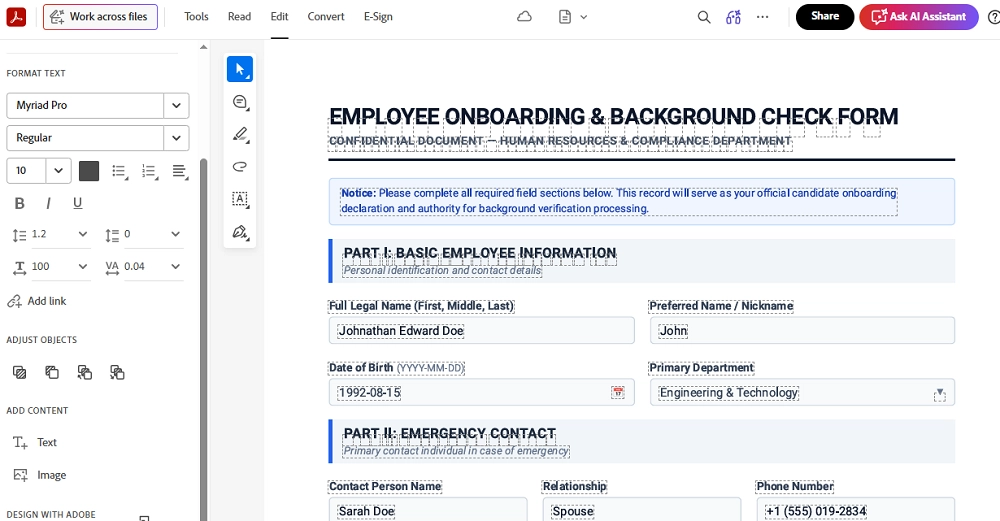
3. Give every field a unique, descriptive name, like your_full_name, if needed.
4. Save this fillable PDF with a new name.
How Do I Convert a PDF to a Fillable Form Online for Free?
Adobe Acrobat is a well-known, versatile choice, but it is economical for regular projects, not for occasional work. This section recommends three free online options suited to different jobs.
Tool 1. PDFFiller
PDFFiller handles both jobs in one place: turning a static PDF into a form and filling one out. You open the file in Add Fields mode and drag fields where you want them. It accepts PDFs up to 100 MB. It is best for people who want full manual control over field placement or who also need signing and sharing.
Quick guide:
1. Open the PDFFiller converter > upload your PDF > start editing.
2. It will detect all the fields so you can fill them and add new fields.
3. Drag whatever you want the text boxes, checkboxes, dropdowns, dates, or signature fields onto the page. It also allows blackout, highlight, sticky, table, freehand draw, and watermark.
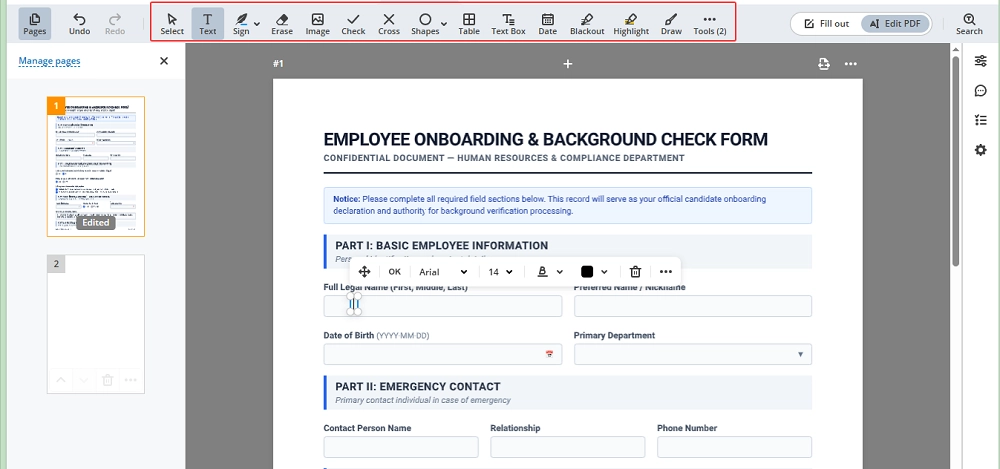
4. Save your changes, then test the fields.
Notice: This one runs on a free trial. Some features, including bulk fill, need a paid plan, so confirm what your trial includes. You’ll also need an account.
Tool 2. iLovePDF
iLovePDF offers a fast, one-off, fairly simple form to make a PDF fillable. But notice that the fields in your file have to be blank because iLovePDF auto-detection works better on an unfilled form. Here is how easily it works.
Quick guide:
1. Go to the iLovePDF PDF’s Forms tool and upload your file.
2. Wait for it to analyze the file to see if it is a scanned or flattened PDF. Once you do, click on the “Edit/Add manually” button.
3. Check each field and add any that are missing, especially the dropdown options, checkbox, and radio buttons.
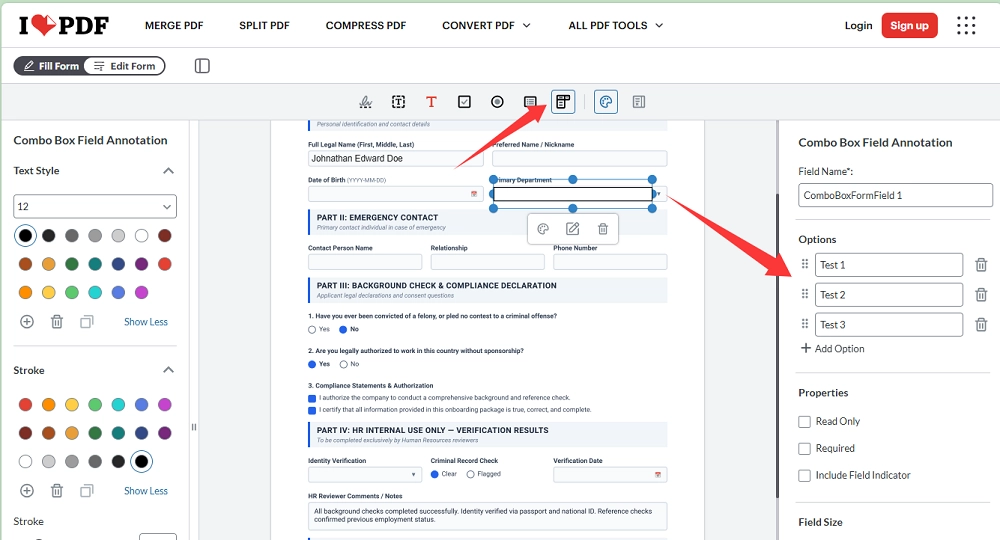
4. Download the result, then check if it can be fillable.
Tips:
If your PDF has no clear lines or boxes, expect to add fields by hand.
Tool 3. Fillout
Fillout does something different. It turns your PDF into an online form, not a fillable PDF. You can use it to convert PDFs into fillable forms for free up to 1,000 submissions a month. This is great for collecting answers from lots of people without chasing email attachments.
However, if you upload a well-laid-out flattened PDFF, it may mix part of the content as a mass.
Quick guide:
1. Go to Fillout’s PDF to Form tool and import your PDF document. Select a design style and click on the Create Form button.
2. Fillout will auto-OCR the content and fields and format them into a questionnaire style. Then, you need to customize the generated form: add text, choices, and pages, validate answers, checkboxes, switch buttons, and more.
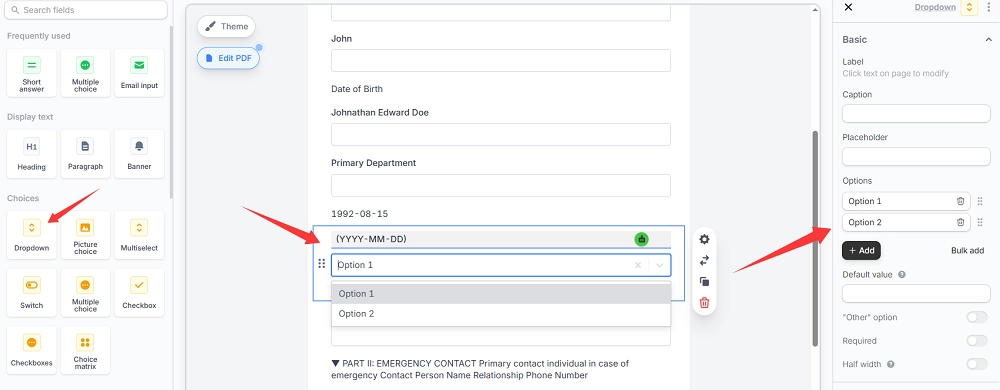
3. Sign up to publish and share the fillable form via a link or a QR code. Also, you can choose an embed form to share it on Twitter, Facebook, LinkedIn, and Reddit.
Notice: Respondents fill in a web page. They don’t type into the PDF itself. If you must hand out the PDF as a file, use one of the other tools.
How to Convert a Scanned PDF into a Fillable Form (Simplest & Efficient Method)
A scan is just a picture of a page, so there’s nothing to detect until the text is recognized. That’s what OCR is for. iBoomto AI has a built-in OCR feature that can auto-detect all the fields in the file. Whether you need to add new fields, change the layout, delete the filled blank content, or refill the fields, you can prompt it to do all your needs fast and safer.
In actual tests, compared to the above tools, iBoomto AI is a true automation helper that saves almost all of our manual work.
Step 1
Step 2
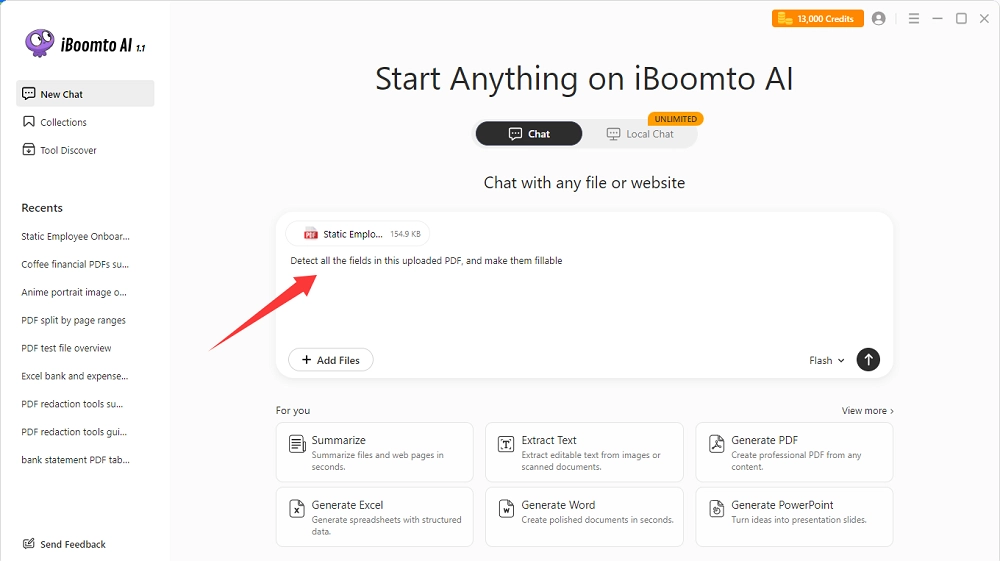
Step 3
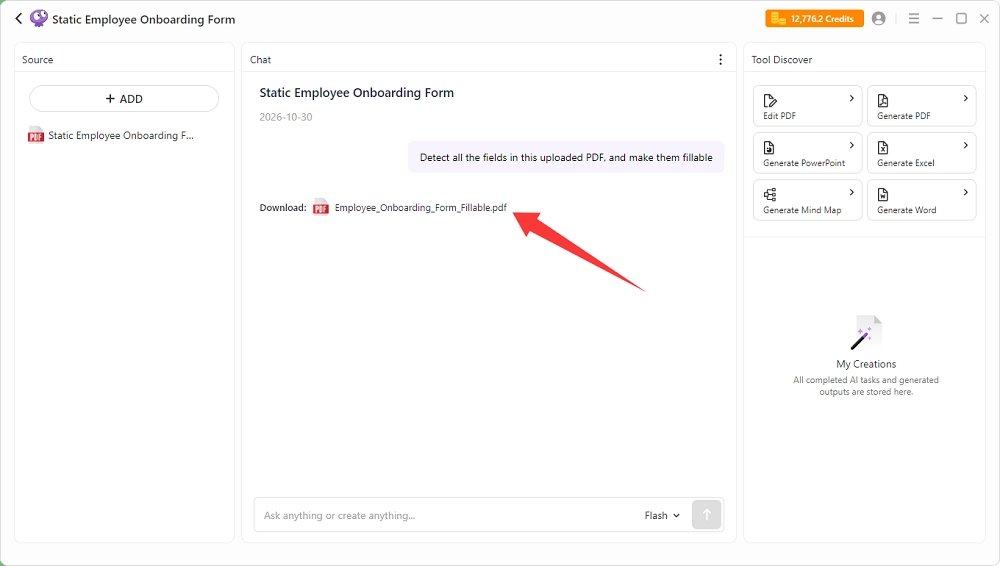
Step 4
In fact, iBoomto AI does more than make the fields fillable. It automatically adds interactive drop-down options and switch options for radio buttons.
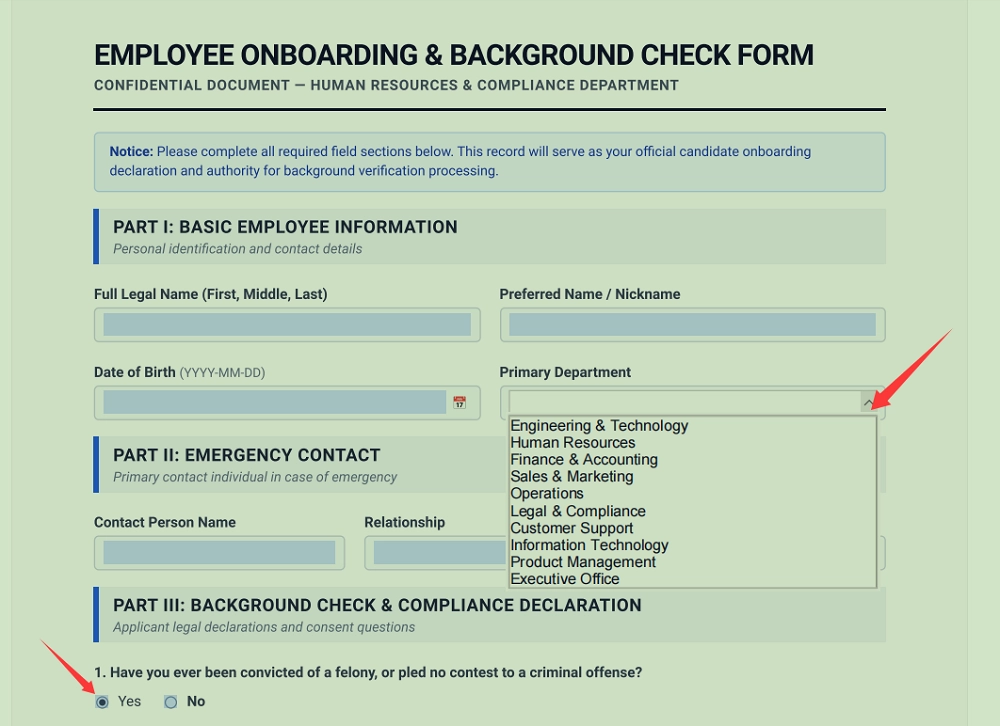
Step 5
If the scan is crooked, faint, or low-resolution, rescan it first. Cleaner input means fewer fixes later.
Test Before You Share or Hand Out the Fillable Form
Open the finished file in more than one place: your PDF reader or editor, Chrome, Mac Preview, and a phone. Then check:
- Every spot that needs input has a field.
- Text, checkboxes, and radio buttons all work.
- Long answers aren’t cut off or hidden.
- Tab order follows the order people fill things in.
- After you save, close and reopen the file, your test entries are still there.
- You’ve tested on the reader or device your recipients will actually use if necessary.
- What you send is a blank template, not your test copy.
Why Is My PDF Still Not Fillable?
Use the checklist to locate your situation and find the corresponding suggestion.
| What you see | What to check | What to do |
| You see lines but can’t click to type. | Were interactive fields actually added? | Place a text field over each line. |
| Some spots work; some don't. | Did auto-detection miss fields? | Add the missing ones manually and preview again. |
| The tab jumps around in a strange order. | Is the field order wrong? | Reorder the fields and test again. |
| The long text gets cut off. | Field type, size, or character limit. | Switch to a multi-line text field and resize it. |
| You got a web link, not a PDF. | Did you publish instead of save? | Go back and use the download or save option. |
Note that the problems like “my entries disappear after saving” or “it won’t fill in one particular reader” vary by tool and reader. Test them yourself before you decide on a fix.
Was this helpful?
Thank you for your feedback!