
How to fix iBoomto AI installation errors?
- 1. Download Errors
- 2. System Compatibility Errors
- 3. Windows Security Warnings
- 4. Installation Permission Errors
- 5. Disk Space Errors
- 6. Application Startup Errors
iBoomto AI is an AI-powered Windows software that allows users to chat with documents to improve workflow efficiency. Although the installation process for iBoomto AI is simple, some users may encounter issues, including download failures, system incompatibility, and application startup problems. This guide covers common iBoomto AI installation errors and provides practical troubleshooting steps to help you resolve them.
For detailed installation instructions, see our iBoomto AI installation guide.
Errors and Solutions:
1. Download Errors
Installation package failed to download, cannot be opened, or appears corrupted.
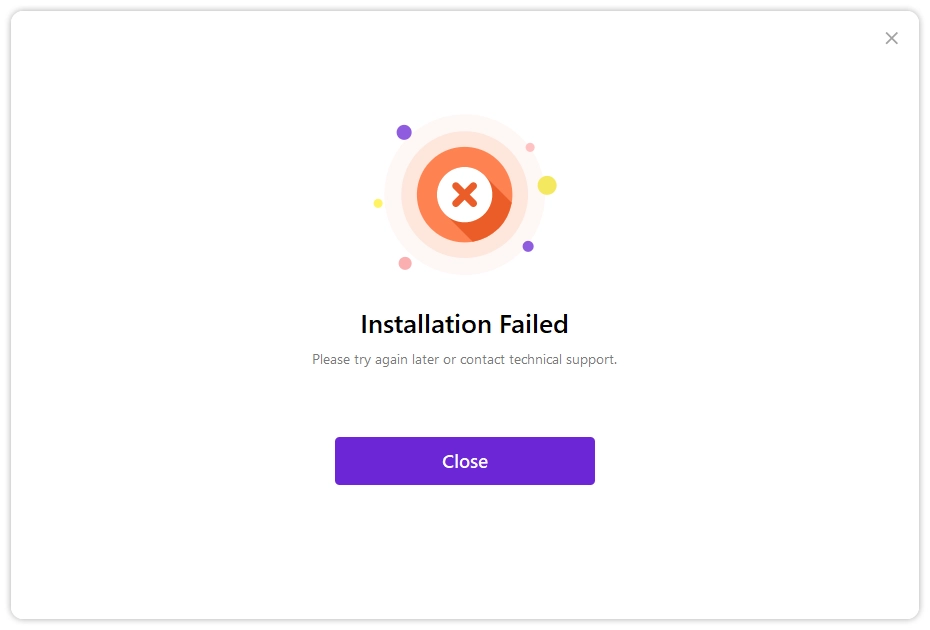
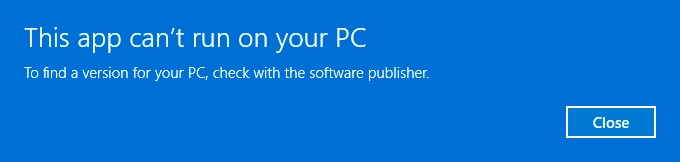
Solutions: Re-download the installation package from an official source; ensure the download is complete before running. If the issue persists, note the source and contact customer support.
2. System Compatibility Errors
Cannot run on this computer / System incompatibility
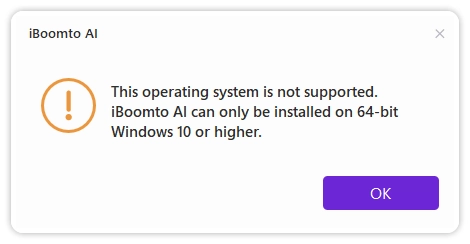
Solutions: Make sure your PC is running Windows 10 or later (64-bit), as required by iBoomto AI.
3. Windows Security Warnings
Windows blocked the application, or unable to verify the publisher
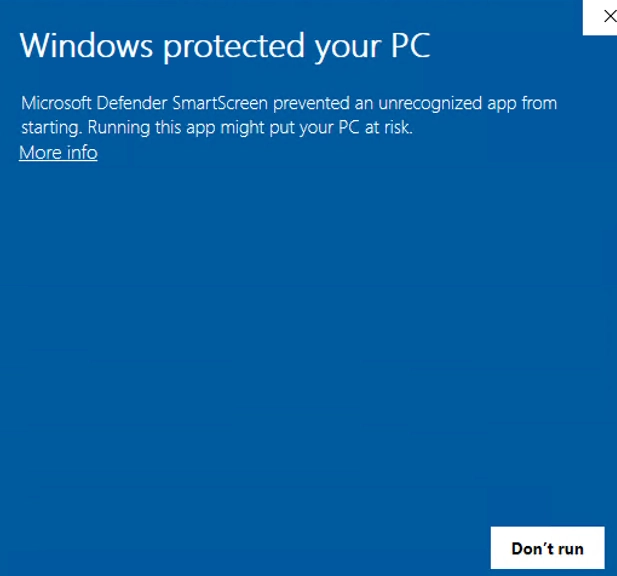
Solutions: Verify the official download source, digital signature, and publisher. If unsure, provide the error screenshot to customer support to check further.
4. Installation Permission Errors
Access denied / Unable to create folder
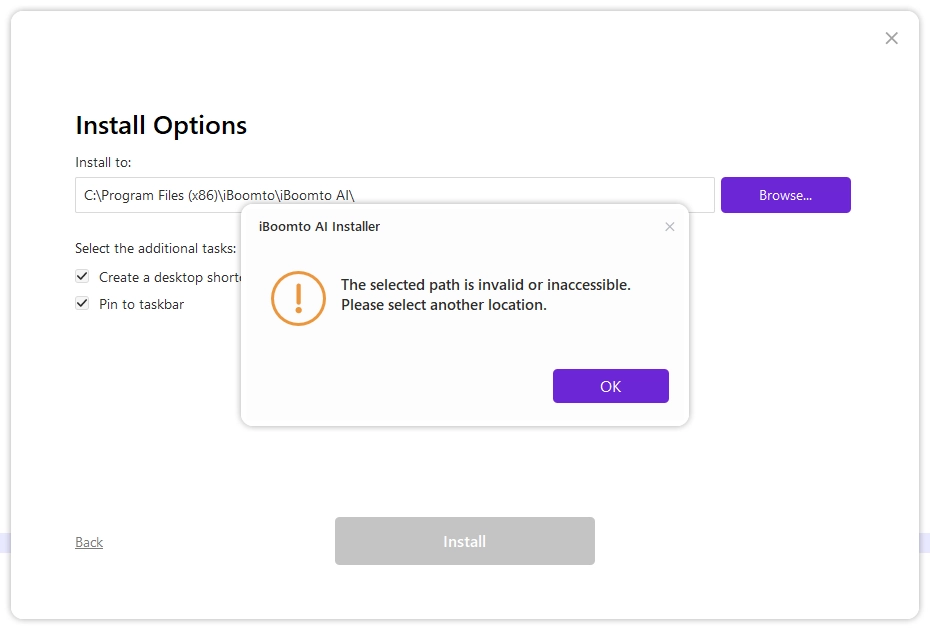
Solutions: Try installing iBoomto AI in the default installation directory. Make sure you have permission to access the selected folder. If the problem persists, contact customer support.
5. Disk Space Errors
Insufficient disk space / Extraction failed
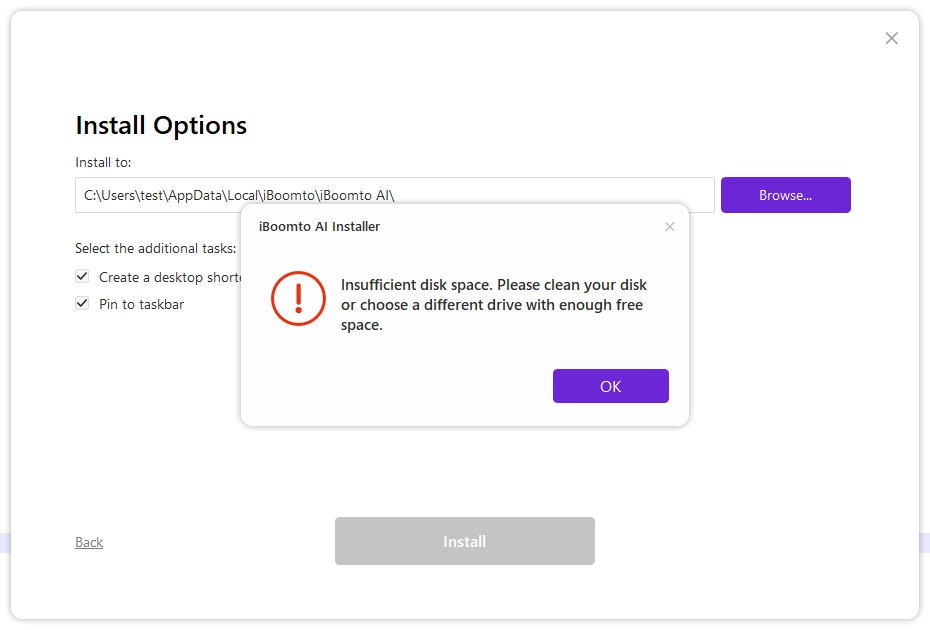
Solutions: Check both the installation drive and the system drive. Use Windows Storage settings to remove files you are sure can be deleted, and reserve enough space as prompted during installation.
6. Application Startup Errors
Installation is complete, but the application won't open or crashes on launch
Solutions: Re-download the installation package from an official source; ensure the download is complete before running.
If you encounter any further issues, please contact our customer support team.
Was this helpful?
Thank you for your feedback!