How to Import Multiple PDF Tables at Once with iBoomto?
How to Import a Scanned PDF into Excel?
How to Copy and Paste for Small PDF Tables?
How to Clean PDF Data After Importing It into Excel?
FAQ
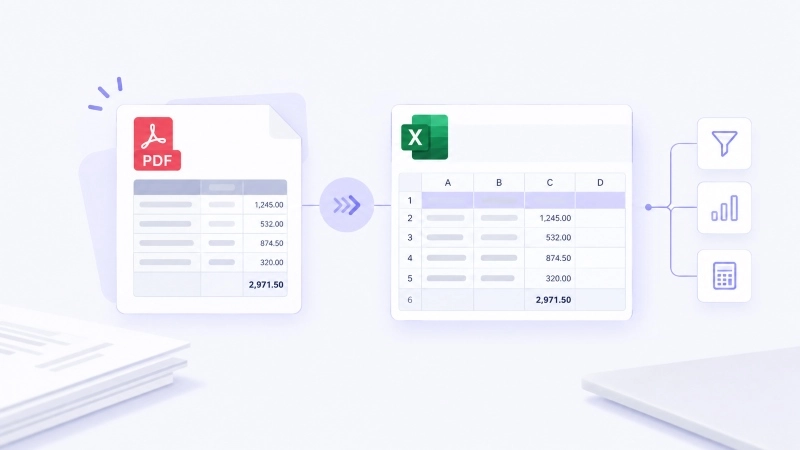
How to import a PDF into Excel? The easiest and most reliable method to get PDF tables into Excel is to use the built-in Get Data > From PDF feature. However, if your PDF is a scan or has a messy layout, you'll need OCR or a dedicated converter instead. This article walks you through the step-by-step guides for different PDF table extractions. Stay tuned to find your best match.
Quick Match Before Importing PDF into Excel
This section is a short path that enables you to quickly find the right way to import data into Excel from your PDFs. Open your PDF and try to select a line of text in your PDF. If you can highlight it, it's a native digital file. If you can't, it's a scan or a flattened file.
PDF type
Best method
What to expect
Digital PDF with clean tables
Excel Power Query
Tables extract directly
Multi-page report with several tables
Power Query + Navigator
Pick one or many tables
Scanned or image-based PDF
OCR or PDF-to-Excel tool
Needs manual proofreading
Complex financial statements, tables split across pages
Power Query + manual cleanup
Merged rows and columns need fixing
Just a small bit of data
Copy and paste
Fast, but easy to misalign
Either way, you have to spend a few minutes checking columns, dates, numbers, and merged cells afterward.
How to Import a PDF into Excel with Power Query?
This is the premier method most people try, as Power Query is free, built into Excel 2016 and above versions (Windows) and the newer Microsoft 365 (Mac), and maintains a live connection for easy refreshing.
Steps
Open Excel and go to the Data tab.
Select Get Data > From File > From PDF.
Choose your PDF and click Import.
In the Navigator window, preview the tables and pages Excel found.
Tick the table you need. For more than one, check Select Multiple Items.
Click Load to drop the data straight into a sheet, or Transform Data to clean it in Power Query first.
Save the workbook. Power Query keeps the connection, so you can refresh it next time.
Tip: If you’d like to import multiple tables (monthly reports, invoices, and multi-page financial statements) at once, try this:
Repeat the above steps until clicking Transform Data > clean each table in Power Query.
Then use Append Queries to stack tables with the same structure into one master table.
Load that to a worksheet or the data model.
When to Use This Method?
Your PDF is a native digital file, not a scanned image.
The tables have a fairly regular structure.
You'll import similar PDF reports again and again.
You want a refreshable query instead of a one-off paste.
How to Import Multiple PDF Tables at Once with iBoomto?
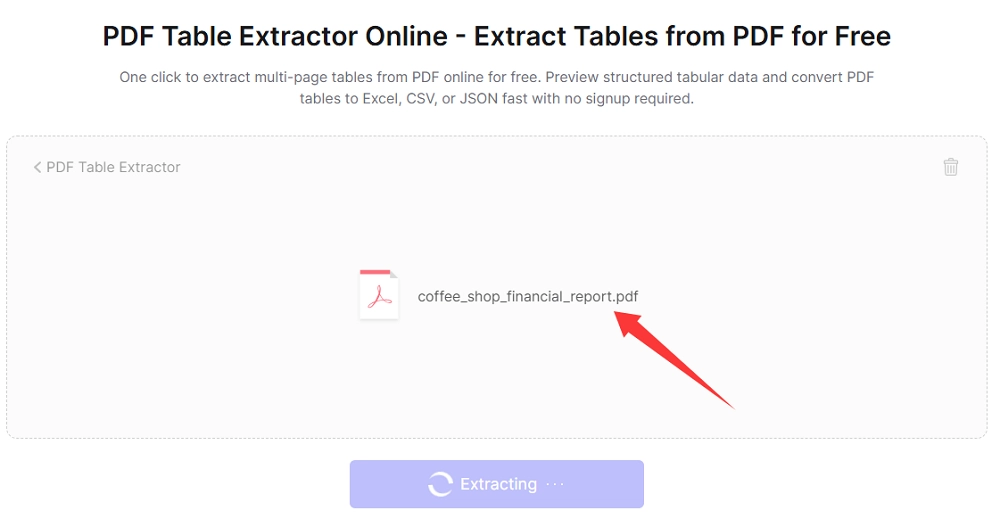
Power Query can extract multiple PDF tables but also has limitations. That's where a dedicated PDF Table Extractor helps. iBoomto creates a free online PDF table extraction tool that works whether they're editable, scanned, or flattened, so everyone can import all table data into Excel from PDF on any device.
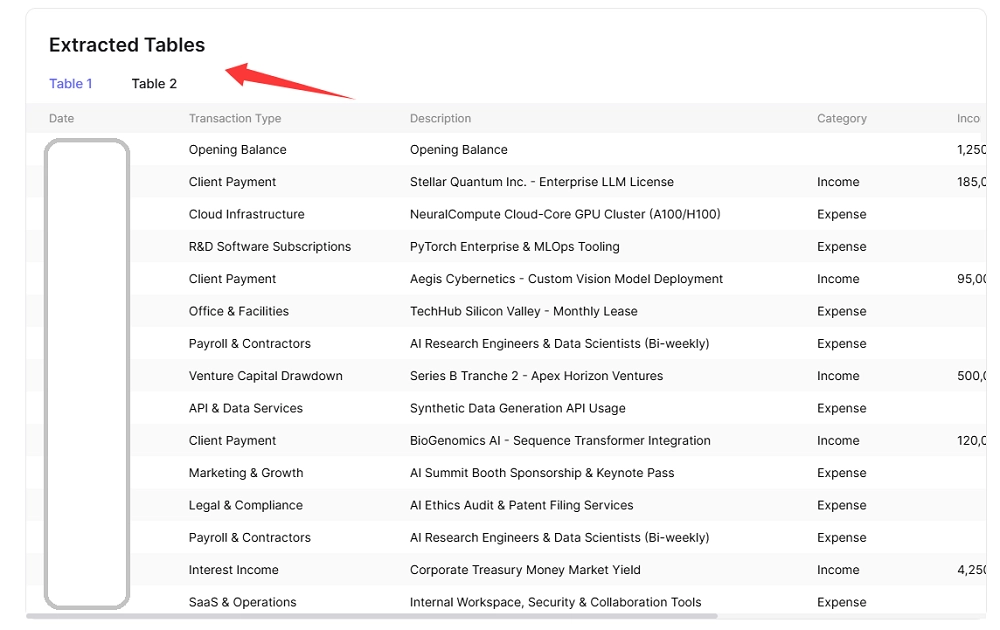
2. Upload your PDF, or drag it into the window. Click the Extract button, then every table in this file will be detected and shown on the page clearly.
3. Preview the results and check if the data and table count are correct.
4. Export to Excel and open the file to check the table layout, cells, headers, numbers, and data again.
Notice: If you have security concerns about uploading sensitive data to the browser, iBoomto AI also supports you by running AI models locally. Its on-device version has 30+ models that enable you to directly download and install them on your device (provided that your computer hardware meets the system requirements). Thus, your file doesn't have to travel to someone else's server.
Additionally, iBoomto AI works as a document processing tool for batches of PDFs, mixed or scanned files, and anything confidential like contracts, invoices, or financial statements.
One AI Agent for Every Step of Your Document Workflow
Chat with your documents, pull out the key points, and generate editable reports, slides, and more — all in one workflow.
Power Query cannot read a scanned or image-based PDF file directly, so you need to turn that image into text first.
Recommended Workflow
Run the file through an OCR tool such as Adobe Acrobat or Microsoft Lens.
Convert it to a searchable PDF, or export straight to Excel.
Open the result in Excel and check the headers, rows, and columns.
Clean up further with Power Query or Excel formulas.
This is the most error-prone route, so don't skip the check. Use this accuracy checklist:
Are numbers stored as text?
Are dates in one consistent format?
Did merged cells get split apart?
Are negative numbers, currency symbols, and thousands separators intact?
Have you spot-checked key figures against the original PDF? For financial data, this one is non-negotiable.
How to Copy and Paste for Small PDF Tables?
If you have one or two small tables and won't repeat the job, copy and paste is perfectly fine.
Steps
Select the table in your PDF reader and copy it.
Paste it into Excel.
Use Data > Text to Columns to fix misaligned data.
Use Paste Special > Transpose if rows and columns come out flipped.
Delete blank rows, repeated headers, and footer text.
Notice: This method is the quickest option, but it falls apart with complex tables, tables that run across pages, and wide, multi-column layouts.
How to Clean PDF Data After Importing It into Excel?
With PDFs, the problem usually isn't getting data in. It's getting data that's actually usable. Here are the common headaches and fixes:
Numbers stored as text: Click the error-check icon to convert them, or use VALUE or NUMBERVALUE.
Messy dates: In Power Query, use Change Type > Using Locale.
Columns split wrongly: Use Split Column by Delimiter or Merge Columns.
Repeated headers: Delete the duplicate rows, or try Use First Row as Headers.
Blank rows and columns: Use Remove Blank Rows and Remove Blank Columns.
Misaligned merged cells: Fill down or fill right to replace the empty values.
Tables broken across pages: Strip out headers and footers, then append the tables that share a structure.
FAQ
Use Excel's built-in Data > Get Data > From File > From PDF. For scanned PDFs, you'll need OCR first.
The usual suspects are scanned images, complex layouts, merged cells, tables split across pages, and text encoding problems.
Yes. Turn on Select Multiple Items in the Navigator, pick your tables, and then load or transform them. You can also use iBoomto's online or local version. The local one is faster and safer.
Usually not, at least not fully. The goal is accurate data structure, not a copy of how the PDF looks.
Be careful with sensitive files. Prefer a local tool, and read the provider's data handling policy before you upload anything.
Plenty of PDFs live behind a web link or in cloud storage rather than on your computer. If your version of Excel supports it, paste the PDF's direct URL into Data > Get Data > From Other Sources > From Web. If the link needs a login, a CAPTCHA, or special permissions, download the PDF first and import the local copy. For Google Drive, Dropbox, and SharePoint files, a direct download link is usually more stable than a preview link.
Share This Post
Camila Carter
About:
Camila Carter writes guides for iBoomto on AI tools, online utilities, and document workflows, including data extraction, document comparison, and file conversion.
On This Page
Quick Match Before Importing PDF into Excel
How to Import a PDF into Excel with Power Query?
How to Import Multiple PDF Tables at Once with iBoomto?
How to Import a Scanned PDF into Excel?
How to Copy and Paste for Small PDF Tables?
How to Clean PDF Data After Importing It into Excel?